




HEIC Converter
iPhone की HEIC/HEIF photos को JPG, PNG, WebP, BMP या GIF में convert करें — instant, free, private।
Best Results: Safari (macOS/iOS) में HEIC natively support होता है। Chrome/Firefox/Edge में भी काम करता है — अगर कोई file error दे तो Safari में try करें। यह tool libheif WebAssembly decoder use करता है सभी browsers के लिए।
HEIC Converter Online
Ever taken photos on your iPhone and then tried to open them on a Windows PC or share them on WhatsApp — only to find they just won’t open? That is because your iPhone saves photos in HEIC format by default, and most non-Apple devices, apps, and websites do not support it. Our free online HEIC converter lets you convert HEIC to JPG, PNG, or other formats instantly — right in your browser. No software to install, no account needed, no file size headaches. Just upload and convert.
No downloads. No signup. No ads. Just upload your HEIC file and get your converted image in seconds.
How to Use This HEIC Converter
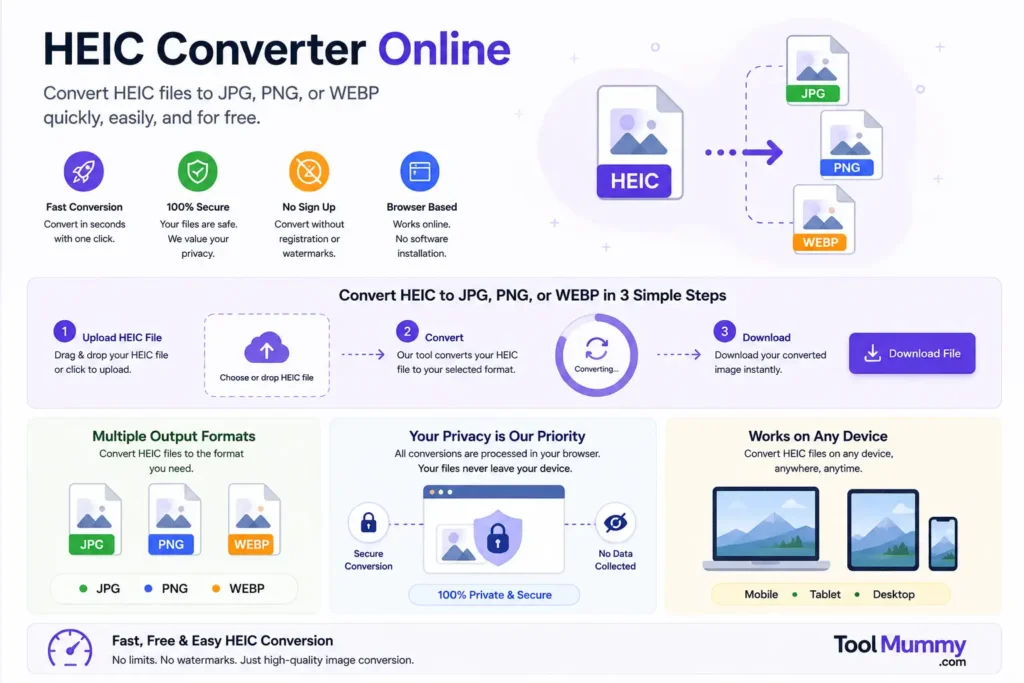
Converting your HEIC photos is simple. Here is how it works:
Step 1 — Upload Your HEIC File
Click the upload button or drag and drop your HEIC file into the converter area. You can upload one file or multiple files at once for batch conversion.
Step 2 — Choose Output Format
Select your desired output format. JPG is the most universally compatible — it works on every device, browser, and platform. PNG is best if you need a transparent background or lossless quality.
Step 3 — Click Convert
Hit the Convert button. Your file is processed instantly and your converted image is ready to download in seconds.
Step 4 — Download Your Image
Click the Download button to save your converted JPG or PNG file to your device. Done — no watermarks, no quality loss, no extra steps.
What you will get:
- Your HEIC photo converted to JPG or PNG
- Full original image quality preserved
- No watermark added to your image
- EXIF metadata preserved (date, location, camera settings)
- Instant download — no waiting, no email delivery
- Works on iPhone, Windows, Mac, Android — any device
What Makes This HEIC Converter Different?
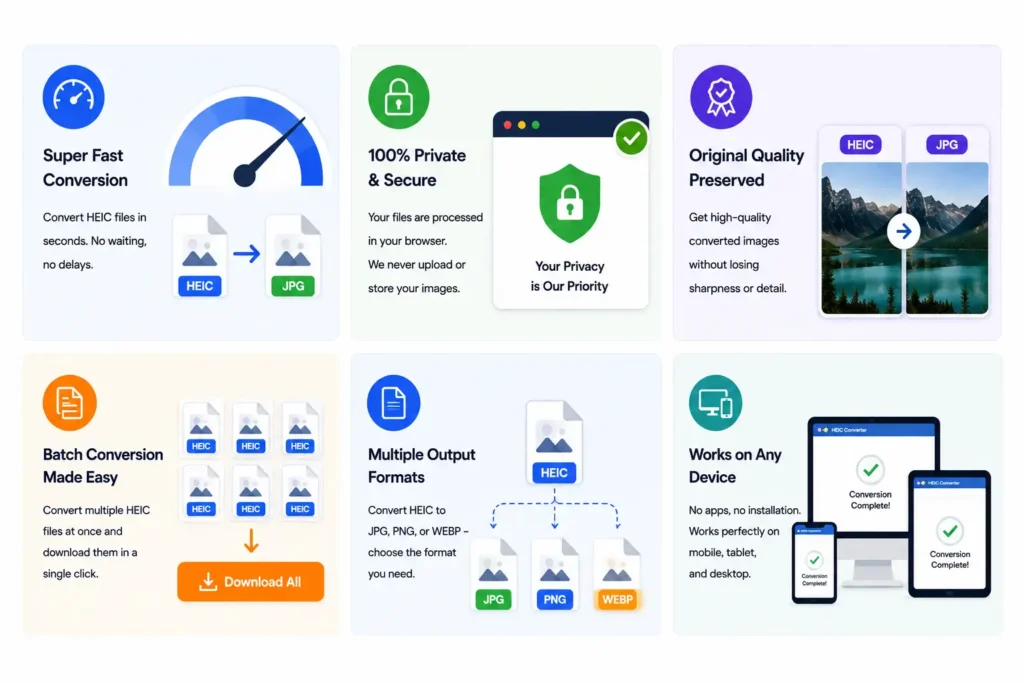
Most basic HEIC converters upload your personal photos to unknown servers and make you wait. Ours is built for speed, privacy, and simplicity.
Instant Conversion — No Waiting
Your HEIC file is converted in seconds. No queue, no processing delay, no email link. The converted file is ready to download the moment you click Convert.
No Quality Loss
Our tool converts at the highest quality settings. The difference between your original HEIC and the converted JPG is practically invisible to the naked eye. You get the same sharp, detailed photo — just in a format that works everywhere.
Completely Free — No Limits
No daily conversion limits, no file size restrictions, no paid plans. Convert as many HEIC files as you need, as many times as you want. Completely free, forever.
No Software Installation
Everything runs in your browser. You do not need to download any app, install any software, or configure anything. Works on Windows, Mac, iPhone, Android — any device with a modern browser.
Your Photos Stay Private
We do not store your photos after conversion. Once your file is converted and downloaded, it is permanently deleted. Your personal photos never sit on our servers.
Batch Conversion Supported
Got an entire camera roll of HEIC photos? Upload multiple files at once and convert them all in one go. No need to convert one by one — save time and get all your photos converted together.
Who Uses a HEIC Converter?
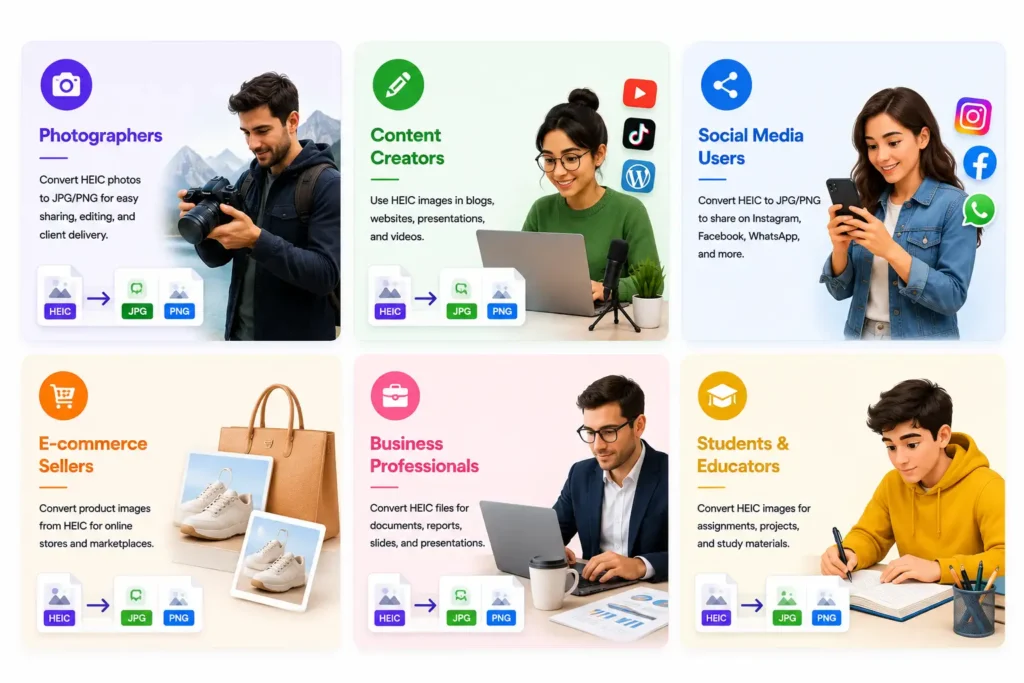
A HEIC converter is useful for a surprisingly wide range of people — from everyday iPhone users to professionals dealing with photos daily.
iPhone and iPad Users
Since iOS 11, every iPhone shoots photos in HEIC format by default. The moment you try to share these photos on WhatsApp, upload them to a website, or open them on a Windows PC, you run into compatibility problems. Converting to JPG solves all of these instantly.
Windows PC Users
Windows does not support HEIC natively without a paid codec extension from the Microsoft Store. Instead of paying for an extension, simply convert your HEIC files to JPG and open them with any photo viewer on Windows — no extra software needed.
Android Users
Android devices cannot open HEIC files at all. If someone sends you iPhone photos via WhatsApp, email, or Google Drive, they may arrive as HEIC files. Use this converter to turn them into JPG and open them normally on your Android phone.
Bloggers and Content Creators
Most websites, WordPress uploads, and social media platforms do not accept HEIC files. Bloggers and content creators need to convert iPhone photos to JPG before uploading to their website or scheduling social media posts.
Photographers and Designers
Professional photographers who shoot on iPhone need to deliver photos to clients in JPG or PNG — formats every client can open. Designers working in Canva, Photoshop, or Figma often need photos in standard formats that HEIC does not support.
Students and Office Workers
Students submitting assignments with iPhone photos, and office workers sharing images in reports or presentations, regularly face HEIC compatibility issues. Converting to JPG takes seconds and eliminates the problem completely.
HEIC vs JPG vs PNG — Which Format Should You Choose?
Not sure which output format to pick? Here is a complete comparison to help you decide:
| Feature | HEIC | JPG | PNG |
|---|---|---|---|
| File Size | Smallest (50% smaller than JPG) | Medium | Largest |
| Image Quality | Excellent | Very Good | Perfect (lossless) |
| Transparency Support | Yes | No | Yes |
| Windows Support | Limited (needs codec) | Universal | Universal |
| Android Support | Not supported | Universal | Universal |
| Web / Social Media | Not accepted | Universally accepted | Widely accepted |
| WhatsApp / Email | May not open | Always works | Always works |
| Best For | iPhone storage only | Sharing, web, social media | Graphics, logos, transparent images |
Verdict: For sharing photos on WhatsApp, uploading to websites, or opening on Windows and Android — always convert to JPG. For logos, graphics, or images where you need a transparent background — convert to PNG.
What Is HEIC? — Explained Simply
HEIC stands for High Efficiency Image Container. Apple introduced it as the default photo format for iPhones and iPads starting with iOS 11 in 2017. Here is everything you need to know about it.
Why Did Apple Switch to HEIC?
Apple switched from JPG to HEIC because HEIC photos are roughly 50% smaller in file size while looking just as sharp. On a 64GB iPhone, this effectively doubles the number of photos you can store. HEIC also supports features JPG cannot — like 16-bit colour depth, live photos, and image sequences stored in a single file.
Why Is HEIC a Problem?
Despite being around since 2017, HEIC support outside Apple devices remains inconsistent. Windows needs a paid extension to open HEIC files. Android devices cannot open them at all. Most websites, social media platforms, WhatsApp, and design tools only accept JPG or PNG. This means every time you transfer iPhone photos to a non-Apple device, you hit a compatibility wall..
HEIC vs HEIF — What Is the Difference?
HEIF stands for High Efficiency Image Format — it is the container format. HEIC is the specific variant that uses HEVC (H.265) compression, which is what iPhones produce. In practice, the terms are used interchangeably. Most converters that support HEIC also support HEIF.
How to Stop iPhone from Saving Photos as HEIC
If you want your iPhone to shoot in JPG directly instead of HEIC, go to Settings → Camera → Formats → Most Compatible. This switches your camera to JPG mode permanently. The trade-off is that your photos will take up more storage space. Most users prefer to keep HEIC on the iPhone and convert only the photos they need to share — which is exactly what our tool is for.
Frequently asked questions
Everything you need to know about our free online HEIC converter.