





🖼️ PNG to JPG Converter
Convert PNG images to JPG format instantly
PNG to JPG Converter Online
Have a PNG image that is too large to upload, share on WhatsApp, or attach to an email? Our free online PNG to JPG converter converts your PNG files to JPG instantly — giving you a smaller, universally compatible image without any visible quality loss. Whether you need to convert a screenshot, a design export, a logo, or a photo for a government form upload — this tool does it in seconds. No software to install. No account. No watermark. Just upload your PNG and download your JPG immediately.
No downloads. No signup. No ads. Just upload your PNG file and get your converted JPG instantly.
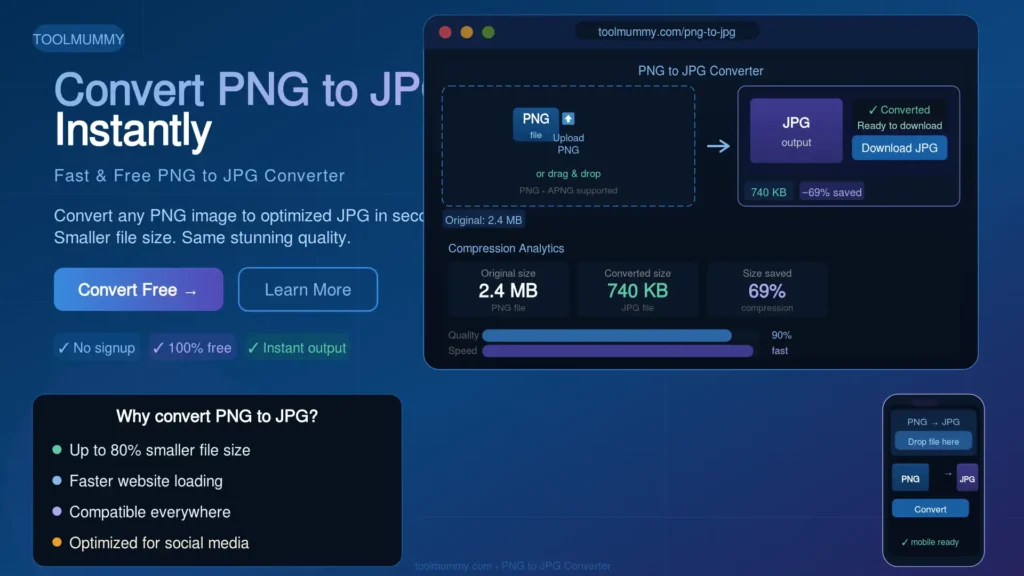
How to Use This PNG to JPG Converter
Converting your PNG to JPG is simple. Here is how it works:
Step 1 — Upload Your PNG File
Click the upload button or drag and drop your PNG file into the converter. You can upload one file or multiple files at once for batch conversion. The tool accepts all PNG files regardless of size or content type.
Step 2 — Set Quality (Optional)
By default, the tool converts at high quality — giving you the best balance between file size and visual quality. If you need an even smaller file, use the quality slider to reduce the output size further.
Step 3 — Click Convert
Hit the Convert button. Your PNG is processed instantly and converted to JPG right in your browser. The result appears in seconds — no upload to external servers, no waiting.
Step 4 — Download Your JPG
Click Download to save your converted JPG file. No watermarks, no quality stamps, no forced registration. Your converted image is clean and ready to use immediately.
What you will get:
- Your PNG converted to JPG format instantly
- Significantly smaller file size than the original PNG
- Same image dimensions — width and height unchanged
- No watermark added to the converted image
- Batch convert multiple PNG files at once
- Works for photos, screenshots, design exports, and graphics
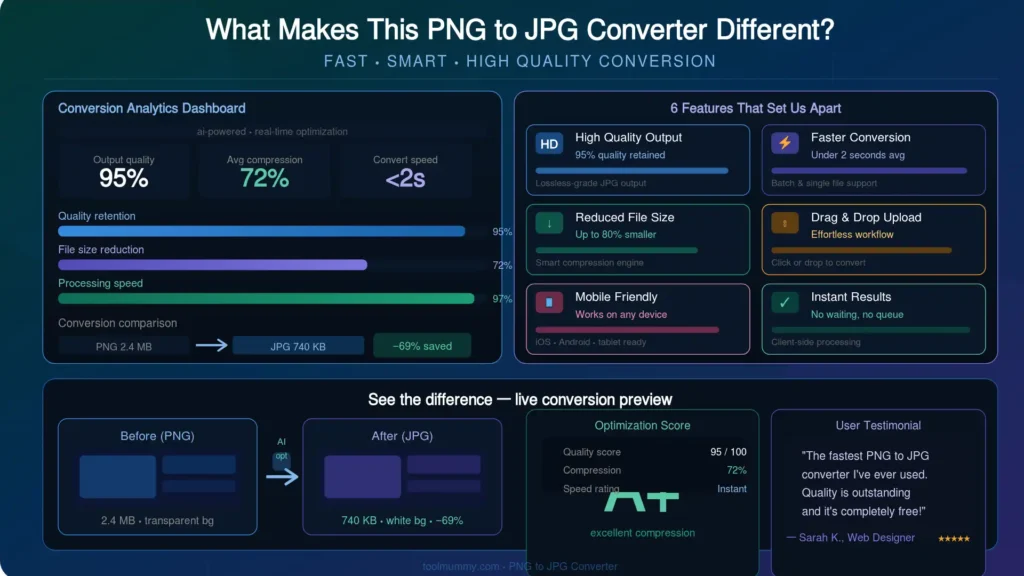
What Makes This PNG to JPG Converter Different?
Most online converters upload your files to unknown servers and make you wait. Ours processes everything in your browser — faster, safer, and with no file size limits.
Instant Conversion in Your Browser
Your PNG file is converted directly in your browser using local processing. No file is uploaded to any server. The conversion happens in seconds — often faster than tools that require upload and download cycles.
No Quality Loss at Default Settings
At the default quality setting, the converted JPG looks visually identical to the original PNG. Our converter targets the optimal compression point — giving you a dramatically smaller file that still looks sharp and detailed.
Batch Conversion — Multiple Files at Once
Convert a whole folder of PNG screenshots, design assets, or product images in one go. Upload multiple files, convert them all simultaneously, and download them together — saving hours of manual one-by-one conversion.
Adjustable Quality Slider
Need an extremely small file for a government upload portal or email attachment? Use the quality slider to set the exact compression level. See the estimated output file size before downloading — so you get precisely the size you need.
Your Images Stay Private
Because conversion happens entirely in your browser, your PNG files never leave your device. We do not see, store, or share your images. Your personal photos, design files, and documents stay completely private.
Completely Free — No Watermarks
No account, no credit card, no usage limits, and no watermarks. Convert as many PNG files to JPG as you need — completely free, forever.
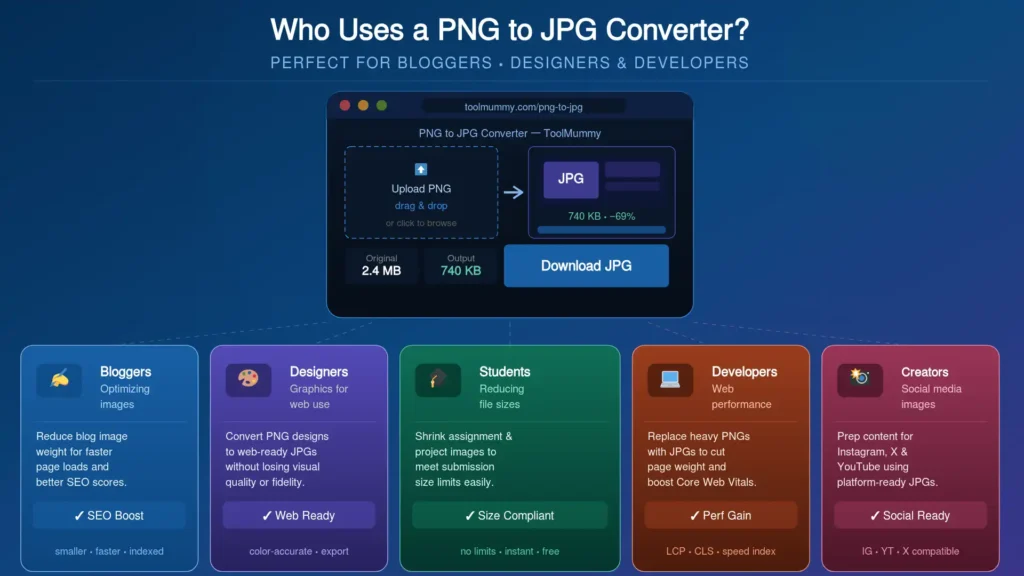
Who Uses a PNG to JPG Converter?
Converting PNG to JPG is one of the most common image tasks on the internet — done by people across every profession and age group.
Website Owners and Bloggers
PNG files from design tools, screenshots, and stock sites are often 5 to 10 times larger than equivalent JPGs. Bloggers and website owners convert PNGs to JPG before uploading to WordPress, reducing page load time significantly. Faster pages rank better in Google and keep visitors engaged longer.
Students and Job Applicants
Government job portals, university application forms, and competitive exam registrations (SSC, UPSC, NEET, JEE) typically require photos and scanned documents in JPG format only — not PNG. Students use this converter to quickly switch their image format before uploading to portals like SSC, UPSC, NTA, and state government sites.
Graphic Designers and Content Creators
Design tools like Figma, Canva, and Adobe XD export in PNG by default. When delivering assets to clients or uploading graphics for social media posts, designers convert to JPG to reduce file size without the transparency overhead that PNG carries.
E-Commerce Sellers
Product photos exported from photo editing tools often come as PNG files. Amazon, Flipkart, Meesho, and Shopify all recommend JPG for product listings because JPG files load faster — directly improving page speed and conversion rates.
WhatsApp and Email Users
A PNG screenshot or image can be 2 to 5MB while the same image as a JPG is under 300KB. Converting before sending means faster delivery, less data usage, and no attachment size errors in email clients that have strict limits.
Developers and IT Teams
Front-end developers convert PNG assets to JPG as part of website performance optimization — reducing total page weight to improve Core Web Vitals scores, PageSpeed Insights ratings, and ultimately Google rankings.
PNG vs JPG — Which Format Should You Use?
Knowing when to use PNG and when to use JPG saves you storage space, upload headaches, and loading time issues. Here is the complete comparison:
| Feature | PNG | JPG | Best Choice |
|---|---|---|---|
| Compression Type | Lossless — no data removed | Lossy — some data removed | JPG for photos, PNG for graphics |
| File Size | Large — 3 to 10× bigger | Small — highly compressed | JPG wins — much smaller |
| Transparency | Supported — full alpha channel | Not supported | PNG for transparent backgrounds |
| Photos / Landscapes | Works but unnecessarily large | Perfect — handles gradients well | JPG is best for photos |
| Logos / Icons / Text | Perfect — sharp edges preserved | Blurry edges on text and lines | PNG is best for logos |
| Web Performance | Slows page loading | Fast loading — web optimized | JPG for web images |
| Government Forms | Often not accepted | Standard — universally accepted | JPG for all form uploads |
| Email Attachments | Often too large | Compact — sends quickly | JPG for email sharing |
Simple rule: Use JPG for photographs, product images, scanned documents, and any image you need to share or upload. Use PNG only when you specifically need a transparent background — like a logo on a coloured banner, an icon overlay, or a watermark. For everything else, JPG is smaller, faster, and universally compatible.
How Does PNG to JPG Conversion Work? — Explained Simply
PNG and JPG store image data in completely different ways. Converting from one to the other is not simply renaming the file — the actual image data structure changes.
What Is a PNG File?
PNG stands for Portable Network Graphics. It uses lossless compression — meaning every pixel is stored exactly as it was captured, with zero data removed during compression. This gives perfect image quality but results in large file sizes. PNG also supports transparency (called the alpha channel), which is why logos and icons often come in PNG format — the background can be made invisible.
What Is a JPG File?
JPG (also written JPEG) stands for Joint Photographic Experts Group. It uses lossy compression — meaning some image data is removed during compression to make the file much smaller. The data that is removed is chosen intelligently — targeting areas of the image that the human eye is least sensitive to, like smooth colour gradients and backgrounds. The result is a file that looks almost identical to the original but is 3 to 10 times smaller.
What Happens to Transparency When Converting PNG to JPG?
This is the most important thing to understand. JPG does not support transparency. When you convert a PNG with a transparent background to JPG, the transparent areas are filled with a solid colour — usually white by default. If your PNG has a transparent background and you need to keep that transparency, do not convert to JPG. Keep it as PNG or convert to WebP instead. Our converter fills transparent areas with white, which is the standard and most widely expected behaviour.
Does Converting PNG to JPG Reduce Quality?
At high quality settings (80 to 95%), the difference between the original PNG and the converted JPG is practically invisible to the naked eye for photographs and most general images. The quality reduction only becomes noticeable at very low quality settings (below 60%) or in images with very sharp text and fine lines — where JPG compression can create slight blurring around edges. Our converter defaults to a high quality setting that gives the best balance.
Frequently asked questions
Everything you need to know about our free online PNG to JPG converter.